
Configuring BSNL EVDO Modem in Debian GNU/Linux
By abhishek

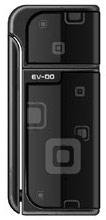
EVDO DeviceI recently shifted to Debian GNU/Linux (Lenny), and the first task included configuring my Internet Connection, i use BSNL EVDO Modem to connect to the internet which is not recognized my default in Debian so following is the process by which i configured my BSNL EVDO in Debian

Step 1) Checked for Modem, Vendor and Product ID

$ cat /proc/bus/usb/devices

You will find many entires in this just check for your modem entry in my case i found

T:  Bus=01 Lev=01 Prnt=01 Port=00 Cnt=01 Dev#=  4 Spd=12  MxCh= 0
D:  Ver= 1.10 Cls=00(>ifc ) Sub=00 Prot=00 MxPS=64 #Cfgs=  1
P:  Vendor=19d2 ProdID=fffe Rev= 0.00
S:  Manufacturer=ZTE, Incorporated
S:  Product=ZTE CDMA Tech

by this i know the following information

Vendor=19d2
ProdID=fffe

Step 2) Detect modem (as root user)

# modprobe usbserial vendor=0x1952 product=0xfffe

Note : appending "0x" before Vendor and ProdID is a must

Step 3) Replug The Modem

Check if its detected using dmesg

# dmesg

[   14.280399] usbcore: registered new interface driver usbserial
[   14.280399] usbserial: USB Serial support registered for generic
[   14.280399] usbserial_generic 1-1:1.0: generic converter detected
[   14.280399] usb 1-1: generic converter now attached to ttyUSB0
[   14.280399] usbserial_generic 1-1:1.1: generic converter detected
[   14.280399] usb 1-1: generic converter now attached to ttyUSB1
[   14.280399] usbserial_generic 1-1:1.2: generic converter detected
[   14.280399] usb 1-1: generic converter now attached to ttyUSB2
[   14.280399] usbserial_generic 1-1:1.3: generic converter detected
[   14.280399] usb 1-1: generic converter now attached to ttyUSB3
[   14.280399] usbcore: registered new interface driver usbserial_generic
[   14.280399] usbserial: USB Serial Driver core

from this you come to know that your modem Device is ttyUSB0

Step 4) Install wvdial

# apt-get install wvdial

Step 5) Configure wvdial

edit the wvidal configuration file (/etc/wvdial.conf) below is my wvdial.conf this should work for you aswell

# gedit /etc/wvdial.com

[Dialer Defaults]
Modem = /dev/ttyUSB0
Init1 = ATZ
Init2 = ATQ0 V1 E1 S0=0 &C1 &D2 +FCLASS=0
Stupid Mode = on
Modem Type = Analog Modem
Phone = #777
ISDN = 0
Username = cdma
Password = cdma
Baud = 9600

Step 6) Connect :)

# wvdial

hey you are now connected.....

Step 7) Adding the Modem Detection @ startup

edit /etc/modules and add the following

usbserial vendor=0x1952 product=0xfffe

# gedit /etc/modules (add the above line)

Notes : wvdial runs as a super user to enable this for normal user you need to edit user permissions.