
G2Image in Drupal using TinyMCE with WYSIWYG API

By abhishek

UPDATE: This post is quite old now and wont work with the latest version of WYSIWYG API, will try to update this soon.

Gallery2 is one of the best galleries available which could be integrated with Drupal easily you would have read my post on integrating it earlier, after you have integrated it the bigger question is how get those images into your content or nodes so this posts answers it, after reading this post you would be able to integrate Gallery2 with your WYSIWYG (TinyMCE) Editor.

Prerequisites

The Steps

  1. Extract G2 Image Application in $DRUPAL_HOME/sites/all/modules/wysiwyg/tinymce/jscripts/tiny_mce/plugins/
  2. Open Gallery Setting in Web Browser from $SITENAME/admin/settings/gallery/g2image and enable G2Image for TimyMCE as shown in the image below
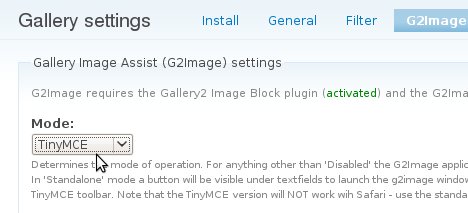
    gallery settings
  3. Once you have selected the Mode as TinyMCE add the following code in %drupal%sites/all/modules/wysiwyg/editors/tinymce.inc (function wysiwyg_tinymce_plugins($editor))

    'G2Image' => array(
            'path' => $editor['library path'] .'/plugins/G2Image',
            'buttons' => array('G2Image' => t('G2Image')),
            'internal' => TRUE,
            'load' => TRUE,
             ),

  4. Now enable G2Image button for TinyMCE from the editor profile at "admin/settings/wysiwyg/profile/edit/2"
  5. Thats it select G2Image button in TinyMCE

    it will popup a Galley as shown below for you to select images and insert them directly in your posts :)
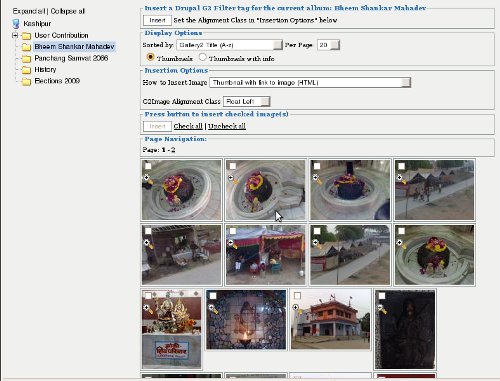
    gallery Pop Up

Indic Touch to Drupal 6

By abhishek

Typing and display of any language other then English is always tough on the Internet to ease this we had various plugins coming in, i had also written a blog for akindic plugin for Drupal 5 last year, but what about the later and better versions of drupal, Gamabhana provides indic typing support but does not works with WYSIWYG API so this blog presents you a solution to type in Indic on Drupal using WYSIWYG API with TinyMCE

Prerequisites

The Steps

  1. Extract the Indic Plugin for TinyMCE in %drupal%sites/all/modules/wysiwyg/tinymce/jscripts/tiny_mce/plugin/indicime
  2. Add the following code in %drupal%sites/all/modules/wysiwyg/editors/tinymce.inc (function wysiwyg_tinymce_plugins($editor))

    'indicime' => array(
            'path' => $editor['library path'] .'/plugins/indicime',
            'buttons' => array('indicime' => t('indicime')),
            'internal' => TRUE,
            'load' => TRUE,
             ),

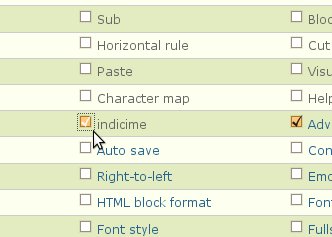
  3. Enable indicime button for Full HTML input format  from "admin/settings/wysiwyg/profile/edit/2"Adding indicime to TinyMce
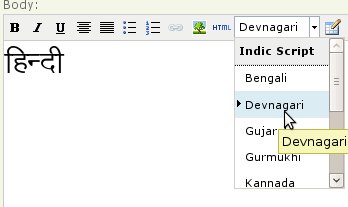
  4. Enable rich text editor when creating Full HTML content and select the language from indicime dropbox as shown in the following image
    Adding indicime to TinyMce
  5. बस अब अपनी मन चाही स्थानीय भाषा मे टाइप् करे !

Restoring GRUB after a reinstall

By abhishek

You had just did a weekly install of some OS which did not detected Linux, Follow the steps mentioned below to get GRUB working again. Please note this would erase the current bootloader and install a new one for you if you are unsure of what you are doing do not try this

  1. Boot from a Linux Live CD ( ex ubuntu or knopix, i use Ubuntu)
  2. Open the terminal
  3. Follow the commands mentioned below
  • sudo grub

if sudo doesnot works switch to root user and use grub drectly, Find the ROOT device you will get the values for X & Y which will be used later.

  • grub> find /boot/grub/stage1

Set the root device from the information achieved from the above command

  • grub> root (hdX,Y)

Install GRUB

  • grub> setup (hd0)

Exit GRUB

  • grub> quit

Reboot the system without using the live CD you will dind your boot loader back :)

From http://ubuntuforums.org/showpost.php?p=121355&postcount=5

User / Group Disk Quotas A three Step Guide

By abhishek

A disk quota is a limit set by a system administrator that restricts certain aspects of file system usage on modern operating systems. "Wikipedia"

Requirements : Quota Package

Where to get it : Quota package is generally available in majority of Linux Distros but still if your distro doesn't provide you with Quota compile it from http://sourceforge.net/projects/linuxquota/ :)

Step 1) Installation :

a) openSUSE : yast -i quota

b) Ubuntu : sudo apt-get install quota

c) Fedora : yum install quota

d) Others : Use rpm or compile if not available


Step 2) Enable Disk Quota

Disk quota is generally applied on a user or a set of users to its recommended to enable Disk Quota on your Home partition dont enable quota on the root partition unless you are under the expert category

To enable disk quota in certain partition just add "usrquota,grpquota" to that partition in your fstab you need root privileges to do this of course.

Following is my sample fstab entry for /home

/dev/sda9 /home ext3 acl,user_xattr,usrquota,grpquota 1 2

After you have added the entry in fstab you need to create the aquota.user and aquota.group files in the partition where you have enabled quota /home in our case use the following command in /home directory

touch aquota.user

touch aquota.group

chmod 600 aquota.user

chmod 600 aquota.group

Now a reboot is recommended


Step 3) Limiting Users on Quota

Now its the time to give quota to user/groups using the following command

edquota -u <username>

or

edquota -g<groupname>

This will open up the configuration file which would look something like this

Disk quotas for user <user> (uid <uid>)

Filesystem blocks soft hard inodes soft hard

/dev/sda9 9215 1048576 1050624 603 0 0

You would notice soft, hard and inodes in this file i would recommend not to use inode as using this would be limiting user on the number of files to create specify size in KB for soft and hard part soft is actually the limit and after soft limit is reached the user is given a grace on size to a maximum mentioned as hard

This completes quota :)

Now how to apply same settings for different users, For instance, to use the same settings for user "nagar" that you set for user "abhishek", you would enter:

edquota -p abhishek -u nagar


Further Study http://www.centos.org/docs/5/html/Deployment_Guide-en-US/ch-disk-quotas.html

SMTP Authentication Support for your Drupal Sites

By abhishek

Drupal uses the php mail() function to send emails by default.
 
Here is a module which adds SMTP functionality to Drupal. More specifically, the ability for your site to send mail using an SMTP server that requires authentication.
 
Link to Module http://drupal.org/project/smtp
This module is currently in Beta stage for Drupal 6.x, i just tried it works fine and you can use this too. remember to read INSTALL.txt before installing this module as there are certain dependencies which are needed to have this module working.
 
This module uses the smtp and mail class’s from PHPMailer. http://phpmailer.sourceforge.net